Lab 4b: JavaScript Object Literals
In this lesson, we are going to create a custom object literal in Javascript.
JavaScript Object Literals
A JavaScript Object literal is a way to contain data in one tidy package. It is often used as a virtual representation of a real-world entitiy. For example, an object literal named "car" could be created by a developer. Cars have properties such as name, engine and mpg. Instead of defining a separate variable for each of these properties, a developer can create an object literal named "car" that holds these properties and the values associated with them.
Basic Syntax
A JavaScript Object literal is a comma separated list of name value pairs wrapped in curly braces. For example,
var myObject = { property1:value1, property2:value2}
Object literals are formed using the following syntax rules:
· A colon separates property name from value.
· A comma separates each name/value pair from the next.
· There should be no comma after the last name/value pair. Firefox won't object if you add it, but Internet Explorer will trigger an error: 'Expected identifier, string or number'.
Create a new XHTML file in Dreamweaver
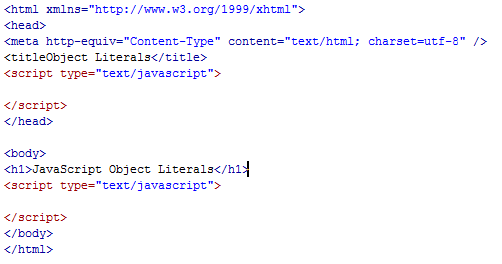
Save the file as lab4b_js_objects.html. Title the page: Object Literals and give it a H1 heading.
Add script tags between both the head and body section of your web page.
Declare the Object Literal
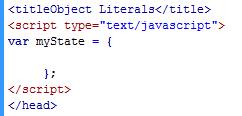
In this tutorial, we are going to create an object literal to store information about the state of California.
Add this code after the first <script> tag:
var myState = {
};
This creates a JavaScript literal object. This object will hold information about a state. The object definition begins with a left bracket and ends with a right bracket.
Add Properties to your Object Literal
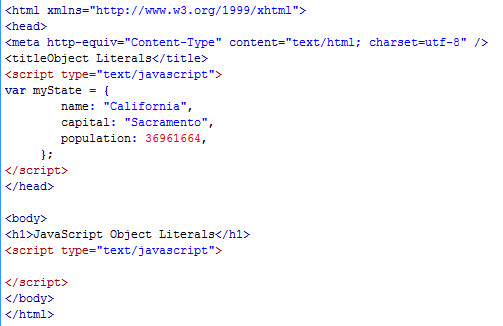
Add this line of code below the first bracket so that the object definition looks like this:
var myState = {
name: "California",
capital: "Sacramento",
};
This creates a property for "myState." The name of the property is "stateName." It has a value of "California." Create a property by separating a name and value with a colon. Surround non-numeric values, such as California, with quotation marks, defining it as a text string.
Add a second property named "capital" to the object. It has a value of "Sacromento." Separate properties with a comma as shown above.
A third property named population is added and it is storing a numeric value. Notice that it is not bounded by quotation marks.
Store an Array in an Object Literal
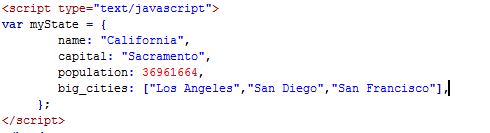
Object literal can also store arrays as properties. I will explain arrays in more detail during another session. For now, just know that an array is an index ordered list of information. In this example, the array is going to store a list of big cities in California.
Notice the syntax, an array is stored within brackets. Each element of the array is within quotes. To access a single item in an array, you would write the
array_name[index_number].
To return the value Los Angeles above, you would write:
big_cities[0]
Store an Object Literal within Another Object Literal
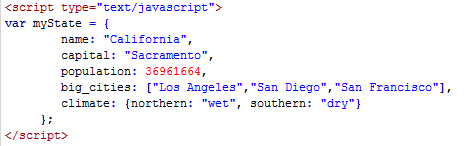
Object literals can contain other object literals. This is an object literal named "climate" that contains two properties: "northern" and "southern." The northern object literal stores the value wet while the southern object literal stores the value dry.
Again, notice the syntax. The object literal is stored within curly brackets.
Create a Function to Print your Object Literal to the Page
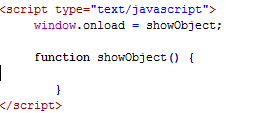
The window.onload statement tells JavaScript to call the function named "showObject" after the page loads. This function prints out some of the values of the object.
Add the Object Literal Properties to your Function

Type the above document.write statement to print your object literal to the page.
To access the value of an object's property, use dot notation. Do this by typing the name of the property followed by a period. For example, to access the capital of California, type "myState.capital". To access the second element of the "cities" array, type "myState.big_cities[1]."
Add the Second Document.Write Statement to your Object Literal

Add the second document.write statement to the object literal:
document.write(myState.name+ "has a population of " +myState.population+ ". The climate in Northern " +myState.name+ " is " +myState.climate.northern+ ".");
This will display the climate in the northern part of the state.To access a property that is inside a child object literal, type the name of the parent object literal, append a period, append the name of the child object literal, append a period and finally append type the the name of the property that you want to examine. In this example, "climate" is a child object literal inside a parent object literal named "myState." Reference the climate in the northern part of the state by typing the following:
myState.climate.northern
Save the File

Test and preview the file in a browswer. Compare with the results above. Save the file and upload to the server.