Session 8: JavaScript Date
In this lesson you will learn how to use the JavaScript Date Object
Create the html and javascript files

For this lesson we will be creating separate html and external javascript files. You will be able to reuse these javascript files in your own web pages to add the date to your sites.
Create a new html file and save it as session 8_js_date.html. Give the page a title and a heading.
Next create a new external javascript file, named date.js and save it in your js folder.
Link this external file to your web page with the script tag:
<script type="text/javascript" src="513_2010/js/date.js"></script>
Open the external JS file
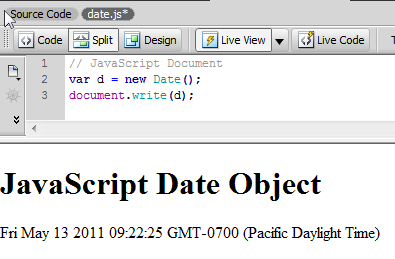
In the external javascript file, we are going to declare a variable called d and assign it a new date object. This will then be printed using a document.write statement. The result is not pretty as it contains more information then you might want.
// JavaScript Document
var d = new Date();
document.write(d);
Use methods on the date object to return just the current month
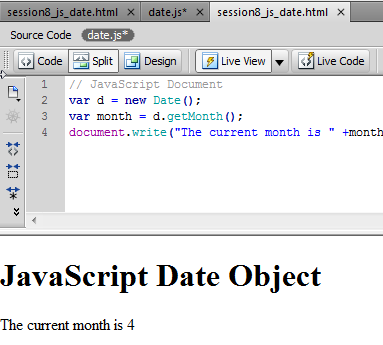
Next, we are going to use the .getMonth() method to return the number for the current month. Declare a variable called month, and add the method .getMonth() to the new date variable d.
However, since Javascript counts up from 0 the month number is off by one number. To fix this, you have to add 1 to the current month.
The proper code is below:
// JavaScript Document
var d = new Date();
var month = d.getMonth() +1;
document.write("The current month is " +month);
Create new variables for the other get methods.
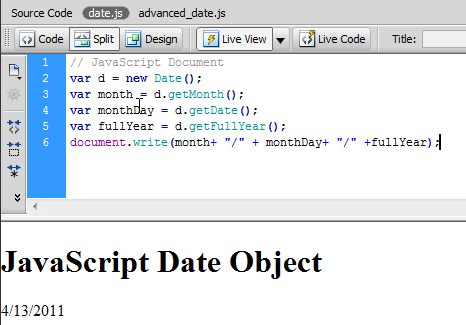
Next, we are going to create another series of variables for the other get methods for the day of the month and the year. Then we will rewrite the document.write statement to print the variables and text string to the screen.
The complete simple date script:
var d = new Date();
var month = d.getMonth();
var monthDay = d.getDate();
var fullYear = d.getFullYear();
document.write(month+ "/" + monthDay+ "/" +fullYear);
Save the file.
Advanced Date Script
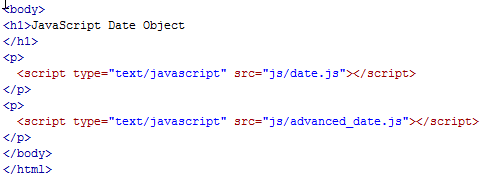
For our advanced date script we are going to create a second external js file and attach it to the same date.html web page. Save the file as advanced_date.js in the js folder. Then attach the external javascript to the date.html after the previous date script. I placed each external script in it's own paragraph.
Code:
<body>
<h1>JavaScript Date Object</h1>
<p>
<script type="text/javascript" src="js/date.js"></script>
</p>
<p>
<script type="text/javascript" src="js/advanced_date.js"></script>
</p>
</body>
Create your new Date Object
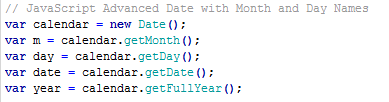
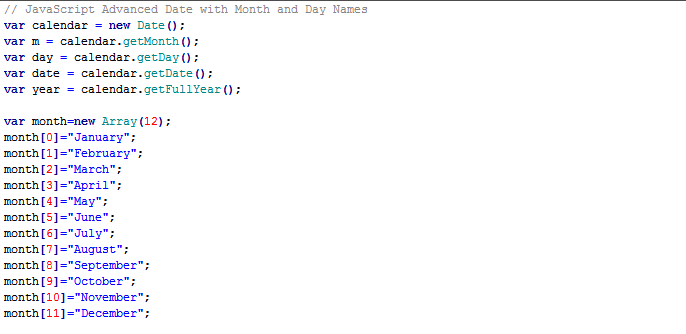
Create a new Date Object name calendar. Then use the ".getMonth()", ".getDay()", ".getDate()", and ".getFullYear()" methods of the date object and store them in an appropriately names variable. Since we are going to be printing the names of the month from an an array we don't have to add 1 to our getMonth() date method. References the example code below:
var calendar = new Date();
var m = calendar.getMonth();
var day = calendar.getDay();
var date = calendar.getDate();
var year = calendar.getFullYear();
Create an Array for the Month Names
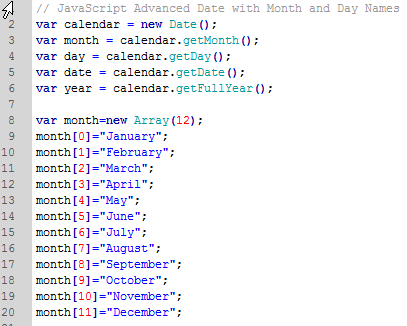
In the external JS file, create an array to store the month names.
var month=new Array(12);
month[0]="January";
month[1]="February";
month[2]="March";
month[3]="April";
month[4]="May";
month[5]="June";
month[6]="July";
month[7]="August";
month[8]="September";
month[9]="October";
month[10]="November";
month[11]="December";
Create an array to store the day names
Next, create an array to store the day names. Notice I decided to use the alternative syntax.
code:
var dayname = new Array("Sunday","Monday","Tuesday","Wednesday","Thursday","Friday","Saturday");
Create the document.write statement to print the date to the screen
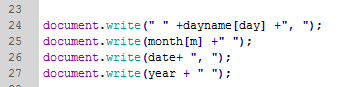
In the first document.write statement the uses an array to print the day name of the week, a blank space is added to make sure there will always be a space between the date and any content on your page before the script. The second document.write uses an array to print the month name. The third document.write statement prints the day of the month while the final statement prints the full four digit year.
The document.write statements needed to print the date to the screen:
document.write(" " +dayname[day] +", ");
document.write(month[m] +" ");
document.write(date+ ", ");
document.write(year + " ");
Save the file. Preview in your browser and should see both dates displayed on your web page. Upload all three files and link to this weeks labs.