MS Office Module
MS Office Module (20 pts)
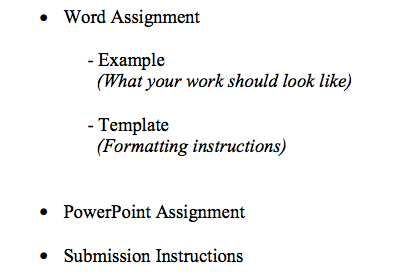
This assignment will include both a Microsoft Word File and a PowerPoint Presentation. Both files should be saved into a folder, zipped and uploaded to Blackboard / Moodle.
Word Assignment
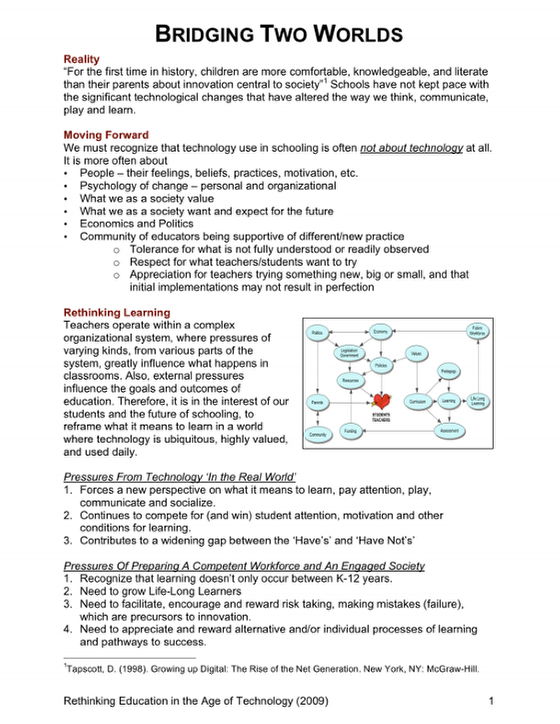
Create a two-page document that looks just like the Example (pgs. 2-3). Follow the instructions provided in the Template (pgs. 4-5). Read and follow assignment specifications carefully.
• Page 1: Replicate the first page entirely and exactly. Use same content, formatting and layout.
NOTE: Depending on your Word application, your body text font size will be either 11, 11.5 or 12. See notes in the Template (pgs. 4-5). Also when creating your footnote, a line may or may not appear right above the footnote. Don’t worry about the line. That too, depends on your version of Word how defaults are set up.
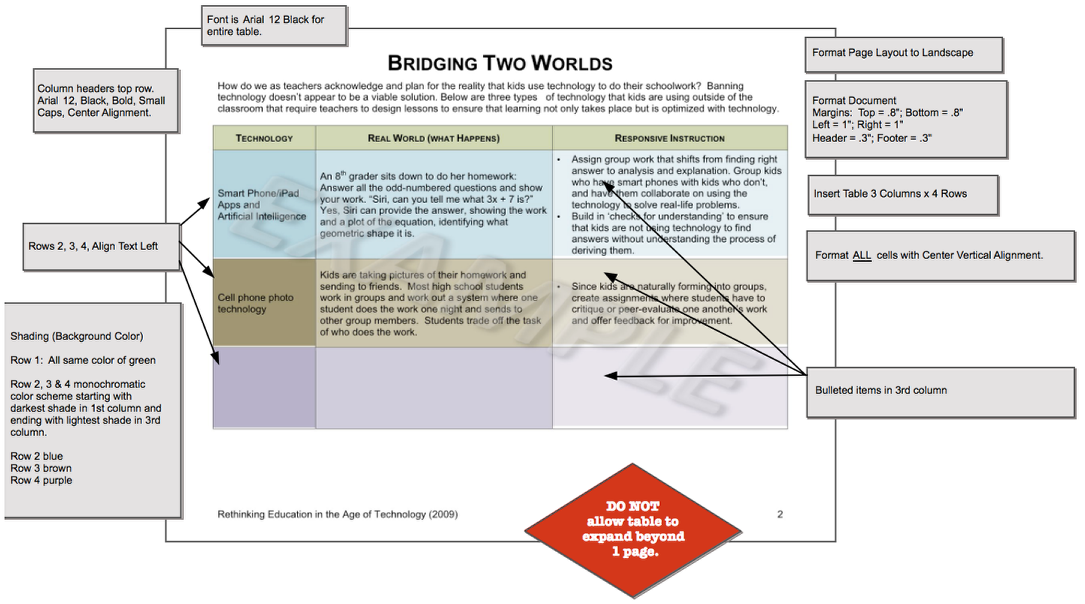
• Page 2: Replicate only the paragraph above the table. Create the 3x4 table with the same column headers, and add your own information. The examples were provided to show you what kind of information to include in the table and how it will look once formatted. DONOT USE THESE EXAMPLES. Come up with three types of technology (different from the two provided) and complete the table. Follow all formatting instructions.
The Word features that you will be using to complete this work are listed below.
1. Changing document top and bottom margins to 0.8”; right and left margins to 1”
2. Inserting header and footer text
3. Inserting an automated footnote
4. Using a automated bulleted and numbered lists
5. Inserting and cropping an image that you created in Inspiration
6. Inserting page numbers
7. Inserting a table (3 columns x 4 rows); formatting color and text
8. Inserting a section break (next page) (at bottom/end of page 1)
9. Applying landscape layout to page 2
10. Formatting text as indicated in the template
Submitting Your Work
Save your work with file name below and submit following MS Office Module submission procedures. File name: username.doc or username.docx
For Example: jcmcgarvey.doc or jcmcgarvey.docx
Online Help for Microsoft Word
Online Help
1. Changing margins in Word
http://www.youtube.com/watch?v=f9jZfTN23hY
2. Working with pictures – info on how to crop starts @ 4:05 and layout with text @ 4:25
http://www.youtube.com/watch?v=Jn3G2GTlNa4
3. Inserting page numbering
http://www.youtube.com/watch?v=V7044f10bEY
4. Inserting a table (1st link) and formatting table and cell text alignment(2nd & 3rd links)
http://www.youtube.com/watch?v=FNaLR-EfznU&feature=fvsr
http://www.youtube.com/watch?v=2y-HY10SBPQ
http://www.youtube.com/watch?v=Xzol9sDPLPA
5. To insert section break AND 6. Change page orientation to landscape
Page 1 Example: Bridging Two Worlds
Detailed Directions Page 1
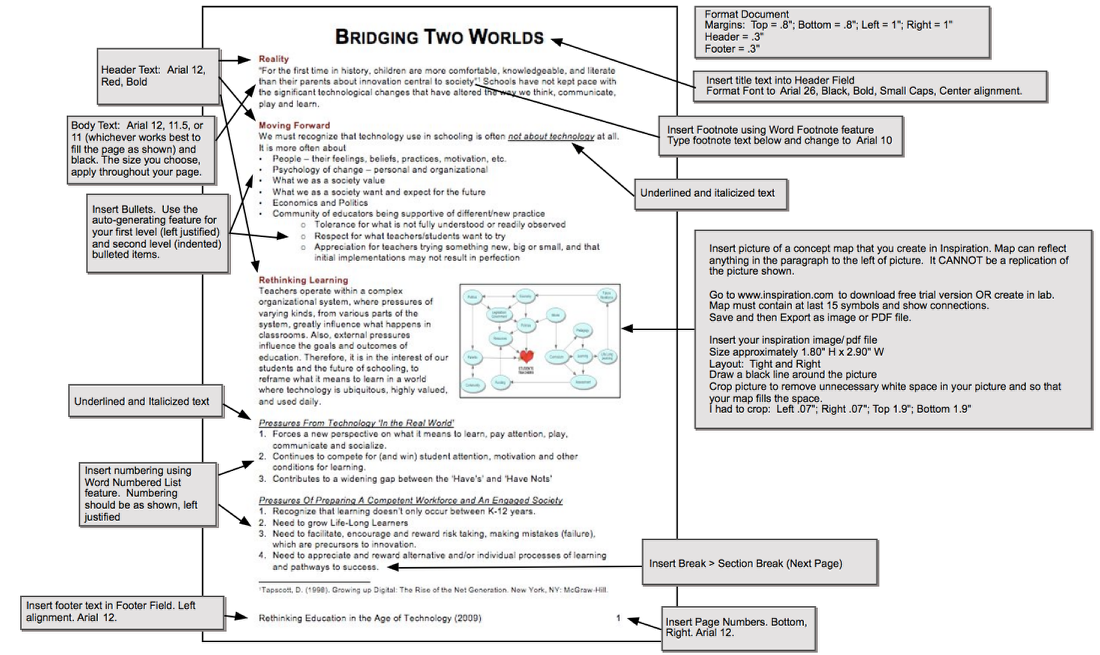
Page 2: Bridging Two Worlds Table
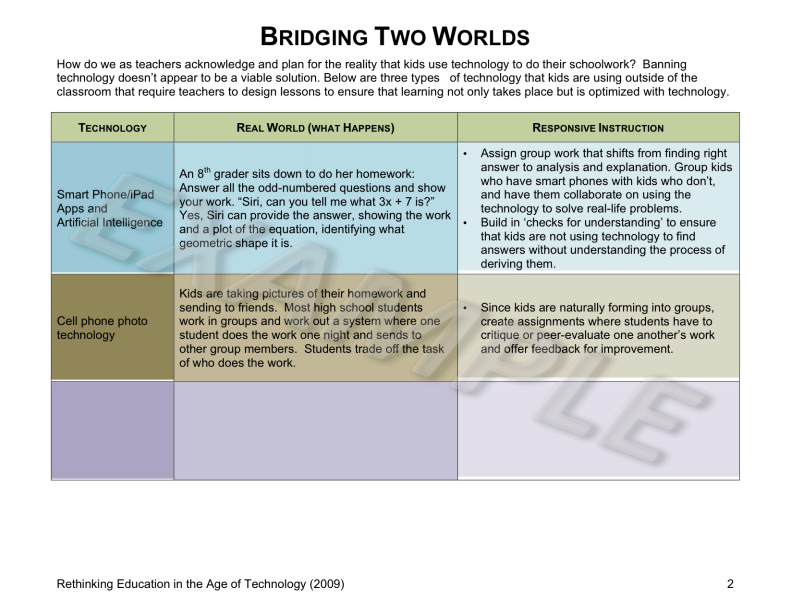
Detailed Directions Page 2
PowerPoint Presentation (10 points)
Technical Requirements
Create a PowerPoint (PPT) presentation with the following minimum requirements. You also have the options to complete this in Prezi.
- 10 slides minimum (including title slide)
- A design theme
- Slide transition affects throughout presentation
- Text animation throughout presentation
- Graphic/image (any kind) on at least 3 slides. One could be your Inspiration image from the Word Assignment.
- One of the above graphics/images made into a hyperlink to a webpage
- One text hyperlink to a webpage
Content Requirements
- Your PPT presentation will draw from the ‘Bridging Two Worlds’ content provided in the Word Assignment. Graphics and links to external websites should be on theme and connect with the content you have on your slides – in other words, should be relevant to, and enhance, this PPT. Your PPT content should be suitable for an audience of peers.
- Use your own words(paraphrase). DO NOT copy and paste from your Word Assignment. PPT content must be in your original words.
- Feel free to expand on, or extrapolate from the ‘Bridging Two Worlds’ content, or even refute it. Your PPT must clearly convey your thinking on the material.
- Include your name on the title slide of your PPT.
Submitting Your Work
Save your work with our CPP username as the file name, e.g., jcmcgarvey.ppt or jcmgarvey.pptx (depending on your version of PowerPoint). Follow submission procedures outlined below.
Online PowerPoint Help
Online Help
- Introduction to PPT application and interface, covers frequently used commands –– http://www.youtube.com/watch?v=XGMmevekJwQ
- Lynda.com provides videos MS Office applications for Windows and Mac platforms.**Not*all* videos*are*available*to*the*pubic*without*a*subscription*but*there are*enough*you*can*access*to*get*started*with*PPT. ––– http://www.lynda.com/home/ViewCourses.asp x?lpk0=70
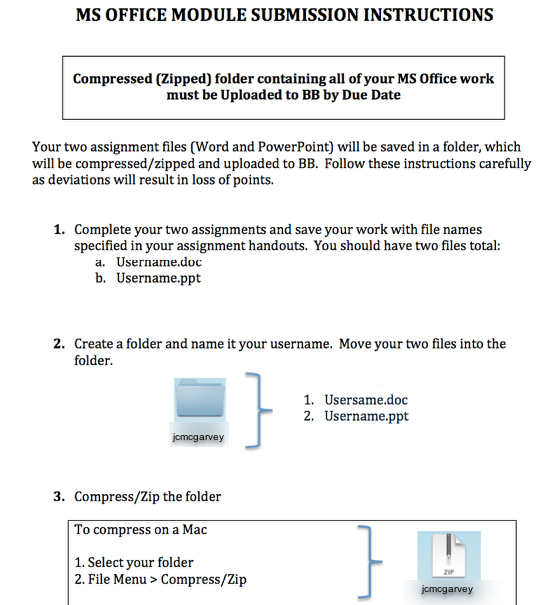
If you use Prezi, make sure your file is public and copy and paste the address into the online Assignments textbox.